
What Is Print Automation for Accounting Firms?
Print automation for accounting firms only works if you fix the workflow before you touch a printer: standardize document naming, approval sign-off, routing rules, and the print-versus-PDF decision for every document type first, then layer tools on top. Buying new hardware or software without that groundwork just moves the same manual mess through the pipeline faster.
Once that groundwork is in place, the automation layer takes over the repetitive routing, naming, batching, and approval of tax returns, client copies, signature packs, and support documents. CCH Axcess Batch Print Set Utility runs up to 10 print sets for up to 50 returns at a time, according to Wolters Kluwer. Xerox Workflow Central and Xerox Connect Apps, built into ConnectKey devices like the AltaLink and VersaLink lines, pull files straight from Box, Dropbox, or OneDrive, convert them, merge PDFs, and route the output to the right print queue.
The automation layer decides what gets named, where it goes, who signs off, and which format the client actually receives. A firm running Workflow Central or the Batch Print Set Utility isn't printing faster so much as removing the manual steps that used to sit between a finished return and a stack of paper on someone's desk.
Is the Problem Your Printer or Your Workflow?
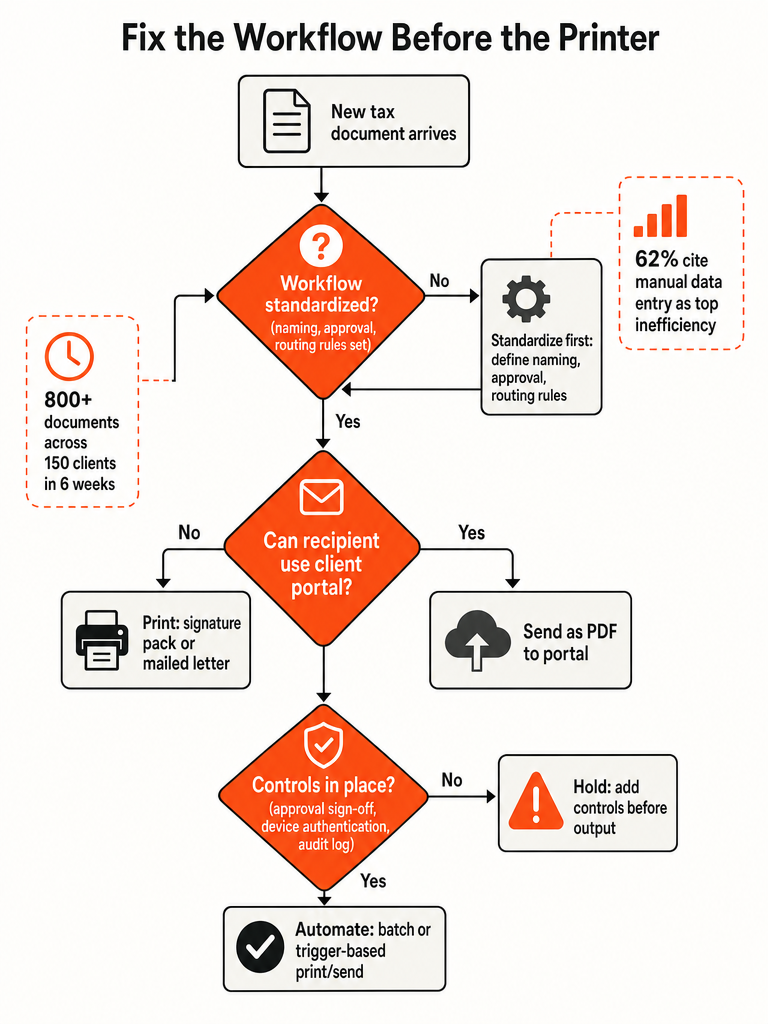
Most print bottlenecks at accounting firms are a workflow-design problem wearing a hardware costume. A new multifunction printer doesn't fix missing naming conventions, undefined approval steps, or routing rules nobody wrote down. It just lets the firm hit the same wall faster.
Etisson's guidance on accounting workflow automation is blunt about the order of operations: standardize the process, document it, then automate it. Skip the first two and automation just speeds up the mess, pushing bad file names, missing signatures, and unclear hand-offs through the pipeline at higher volume. That's the opposite of the fix a firm is paying for.
The upstream data problem is real and measurable. Digits found that 62% of accounting professionals cite manual data entry as a key source of inefficiency and mistakes. Print jobs inherit that mess: a return pulled from the wrong version, a client copy missing a schedule, a signature page filed under the wrong name. None of that is a printer problem.
Before buying hardware or software, a firm needs to know which process is actually broken. That's the diagnostic work covered in how to prioritize business processes for AI automation: map the volume, the exceptions, and the decision points before picking a tool.
Which Documents Should Still Be Printed vs Sent as PDF to the Portal?
Default to portal PDF. Print or mail only when the recipient can't use the portal, a signature has to land on paper, or mail is the channel the document actually needs. That rule, laid out in Fabren's guidance on print automation for tax and bookkeeping firms, cuts the print queue down to the documents that genuinely require it.
| Document Type | Recommended Channel | Why |
|---|---|---|
| Client copy of tax return | Portal PDF | Client can download, save, and reprint on their own |
| Form 8879 signature pack | E-sign (DocuSign, HelloSign) when the firm's tax software and the current Form 8879 support it; print only when e-sign isn't available for that filing | The print-vs-e-sign path depends on the software's signature workflow, not just what the client prefers |
| Filing copy (IRS/state) | Portal PDF; print only if an internal retrieval drill or audit calls for a paper copy | Fabren treats filing copies as electronic-first, not print-first |
| Client organizer | Portal PDF | Client fills it out and returns it digitally |
| Mailed letter (engagement, notice response) | Mail is the channel, not a printer substitute |
Documents usually arrive from Box, Dropbox, OneDrive, or Google Drive before they ever reach a print queue or a portal upload. A firm running a client portal can route most of that volume straight to the client without a print step touching it at all. The print queue should be the exception path, not the default one.
What's Actually Causing Print Bottlenecks During Tax Season?
Manual steps stacked in front of the printer, not the hardware itself, create the tax-season bottleneck. gFlesch's research on tax-season printing names the same culprits every firm recognizes but rarely tracks: staff opening a file, downloading it, printing it, and refiling it one document at a time, small revisions triggering a full reprint, devices going down during the exact week nobody can afford downtime, and manual collation of multi-document packets.
AutoPrintEmail puts a number on what that looks like at scale: 150 clients sending 4 to 8 tax documents each can generate 800+ documents landing in a firm's inbox over a 6-week window. Every one of those documents gets the same manual treatment: open, download, print, file, repeat.
Staff time spent on that cycle is time not spent preparing returns. That admin drag is the same problem covered in AI automation for service businesses with too much admin: the work piles up not because the team is slow, but because the process has too many manual hand-offs.
How Do You Automate Tax Return Printing: Batch, Trigger, or Mail?
There are three distinct automation models here, and most firms only need one or two of them. Batch printing handles volume inside your tax software. Rule-based auto-print handles documents arriving by email. Print-and-mail services handle the outbound physical copy that still has to leave the building.
CCH Axcess Batch Print Set Utility runs up to 10 print sets for up to 50 returns at a time, according to Wolters Kluwer, and it's built to run unattended once a firm sets the print sets and client list. QuickBooks offers a similar model for invoices and sales receipts: mark a transaction "Print Later" and print the whole batch at once instead of one at a time.
Rule-based auto-print solves a different problem: documents clients send by email instead of uploading. AutoPrintEmail connects to Gmail or Outlook and prints W-2s, 1099s, and bank statements automatically based on sender or subject-line rules, so a document that lands at 9 p.m. is printed and waiting the next morning.
Print-and-mail services cover the third case: outbound letters, notices, and physical client copies that need to go out by mail rather than print in-house.
| Automation Type | Example Tools | Runs Unattended? |
|---|---|---|
| Batch printing | CCH Axcess Batch Print Set Utility, QuickBooks "Print Later" | Yes, once configured |
| Rule-based auto-print | AutoPrintEmail (Gmail, Outlook) | Yes for intake; review still needed before client-facing output |
| Print-and-mail service | Outbound mail vendors | No, needs a human check before send |
Batch and trigger-based printing can run with no one watching the queue. Anything going out to a client by mail or signature pack still needs a human to check it first.
What Controls Need to Exist Before Tax Documents Print?
Printing a return or mailing a signature pack without controls is how sensitive taxpayer data ends up sitting in an output tray or going to the wrong address. gFlesch's research on tax-season printing flags unsecured print output as a compliance risk: unprotected printers and multifunction devices can also open network security gaps for the whole firm.
Before any client copy, Form 8879 signature pack, or mailed letter leaves the building, a firm needs three things in place:
- Approval sign-off. Someone reviews the final document against the client file before it prints or mails, catching a missing schedule or an outdated version before it reaches the client.
- Naming and routing rules. Every document gets a consistent file name and a defined destination (portal, print queue, or mail) so nothing routes by guesswork.
- Device security controls. Authentication at the device and an audit log of what printed, when, and by whom, so sensitive output isn't sitting exposed on a shared printer.
Form 8879, IRS Publication 1345, and Publication 4557 all touch signature and data-security requirements for e-filed returns, but public detail on exact retention periods and signature-handling specifics for firm-level print workflows is limited as of this writing. Treat those documents as the starting reference point and confirm current requirements with your own compliance review, not a blog post, including this one.
Should You Fix This In-House or Automate the Whole Workflow?
Handle this manually only when volume is low. Once errors and weekly rework start showing up in naming, approval, or routing, automate the full document workflow instead of patching one more step by hand.
Fixing naming, approval, and routing manually costs almost nothing up front and almost everything in maintenance. A spreadsheet of naming rules or a shared doc of routing steps works for a few months until someone forgets to update it, or a new hire never sees it.
- Try the manual fix first if the volume is small. A firm printing a few dozen packets a season can write the rules down and enforce them by hand.
- Automate the full document workflow once the manual version breaks under volume. That's the point where naming, approval, and routing errors show up every week instead of once a quarter, and the "print problem" turns out to be a document workflow problem wearing a print-shaped hat.
- Don't borrow an ROI number from a different workflow. Kyocera's two-year ROI figure covers automated invoice processing, not print workflow automation for accounting firms, and no source in this research tracks a reliable payback timeline for print automation specifically. Budget this against the hours currently lost to manual printing, not a borrowed benchmark.
The real test is whether the workflow underneath the printer can survive another tax season unchanged. If the answer is no, that's the same decision point covered in what to automate after you already automated invoicing.
Frequently asked questions
How many print sets can CCH Axcess Batch Print Set Utility run at once?
CCH Axcess Batch Print Set Utility runs up to 10 print sets for up to 50 returns at a time, according to Wolters Kluwer. It works unattended once a firm configures the print sets and client list, cutting the one-by-one printing cycle that used to eat staff hours during peak filing weeks. The tool is built into CCH Axcess specifically for bulk return output, not manual, document-by-document printing.
Can QuickBooks batch print invoices instead of printing them one at a time?
Yes, QuickBooks lets you mark a transaction "Print Later" and print the entire batch in one run instead of printing each invoice individually. This covers invoices and sales receipts, similar to how CCH Axcess batches tax return print sets on the tax side. It removes the repetitive open-print-file cycle for firms handling volume invoicing alongside return preparation during busy season.
How many documents can flood an accounting firm's inbox during tax season?
A firm with 150 clients sending 4 to 8 tax documents each can see more than 800 documents land in its inbox over a six-week window, according to AutoPrintEmail. Each one gets the same manual treatment of opening, downloading, printing, and filing unless a rule-based auto-print tool handles intake automatically. That volume is why staff burn hours on document handling instead of preparing returns.
Is there a reliable ROI timeline for automating print workflows at an accounting firm?
No, there's no verified payback-period benchmark specific to print workflow automation for accounting firms. Kyocera's two-year ROI figure applies to automated invoice processing, not print automation, and no source tracks a reliable timeline for this exact use case. Budget the decision against the hours currently lost to manual printing at your firm rather than borrowing a number from a different workflow.
What security risks come with printing sensitive tax documents in-house?
Unsecured print output is a real compliance risk, and unprotected printers or multifunction devices can open network security gaps for the whole firm, according to gFlesch's research on tax-season printing. The fix requires device authentication and an audit log of what printed, when, and by whom, so client data isn't sitting exposed on a shared printer. Firms should confirm current signature and retention requirements against Form 8879 and IRS Publication 1345 directly.
Does Form 8879 have to be signed on paper, or can it be e-signed?
Form 8879 can be e-signed through tools like DocuSign or HelloSign when the firm's tax software and the current version of the form support that workflow; printing is only needed when e-sign isn't available for a given filing. The decision depends on the software's signature capability, not client preference alone. Firms should verify current IRS requirements for Form 8879 rather than assuming e-sign applies to every filing type.