


What Breaks First When You Migrate Off HubSpot
Pipeline loss during a HubSpot migration rarely comes from a failed export. CRM Magnetics traces most of the damage to four breakdowns: unclear ownership after cutover, confusion over which system reps should be entering data into, deal stages that change without explanation, and automation or reporting that resets unexpectedly once historical data lands in the new system. None of these are data problems. They're sequencing and communication failures that happen when a team treats migration as an export job instead of a live-system cutover.
A deal that goes quiet during a HubSpot migration usually still exists as a record. It just has no owner watching its stage and no automation nurturing it anymore, because the workflow either didn't come across or fired at the wrong moment.
Fix the sequencing problem first and the data problem mostly takes care of itself. That's the order this guide follows.
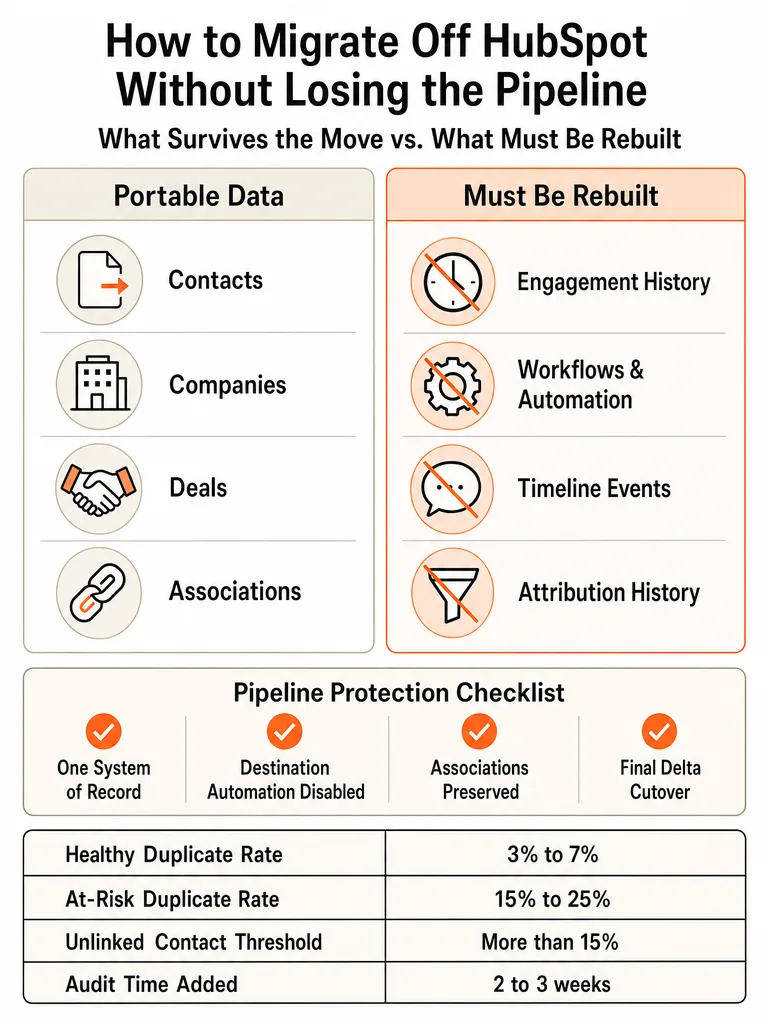
What Data You Must Move First: Contacts, Companies, Deals, and Associations
Contacts, companies, deals, and the associations between them are the four record types you move first when you migrate off HubSpot. Dev Paragon calls these non-negotiable: everything else, especially activity history, gets migrated selectively rather than wholesale. Skip that distinction and you either drown the new CRM in noise or leave a rep without the context they need mid-deal.
The associations matter more than the records themselves. A contact without a company link, or a deal without a contact link, becomes an orphan the moment it lands in the new system, invisible to pipeline reports and impossible to route correctly. HubSpot's Companies-to-Contacts relationship is many-to-many, and deals carry pipeline-specific stage data, so the mapping logic between HubSpot's schema and your destination system has to be explicit rather than assumed, according to a HubSpot-to-custom-CRM migration breakdown from Iurii Rogulia.
Activities: only migrate what actually feeds forecasting, attribution, or active account context. The rest can stay behind in HubSpot as an archive.
What Should You Export Before Leaving HubSpot?
Export contact and company properties, deal records, and manually entered notes before leaving HubSpot: those are the pieces that come out cleanly. Engagement history, meaning email opens, form fill events, and timeline activity generated by HubSpot's own tools, doesn't export the same way, according to a long-running thread on the HubSpot Community. The assets that generate that history, the actual emails, forms, and social posts, live inside the portal and don't travel with a standard export.
Split your export list into two piles:
| Exports cleanly | Has to be rebuilt manually |
|---|---|
| Contact and company property values | Email open/click history |
| Deal records and stage data | Form fill timeline events |
| Manually logged notes and tasks | Social post engagement |
| Associations (contact-company-deal) | True original-source attribution nuance |
Phil Vallender, a longtime contributor on the HubSpot Community, put it plainly: bringing engagement data across "would take some pretty complex engineering" because the email or form it relates to doesn't exist in the second portal. Budget time to manually document, not migrate, that second column.
Can You Migrate History From One HubSpot Account to Another?
No. HubSpot does not support migrating full engagement history from one HubSpot account to another. HubSpot's own community moderators confirm that only on-record properties and manually entered notes or activities can move between portals; anything generated automatically, like email opens, form submissions, and timeline events, stays behind because the underlying assets don't exist in the destination portal.
This is a recurring complaint on the HubSpot Community, where users moving to a new portal discover contact records arrive stripped down to a generic "contact was added via data import" note, with no trace of the last email sent or the date of last contact. Third-party migration vendors, including Import2 and Data2CRM, can extend what transfers beyond a manual export, but even those tools stop short of recreating true engagement history.
If engagement history matters to your team, plan to document it manually before you leave. No vendor can pull it out of a portal that no longer contains the emails it relates to.
What Happens to Workflows and Automation When You Leave HubSpot?
Workflows and sequences don't travel with a HubSpot migration; they have to be documented and rebuilt from scratch in the destination system. Dench's migration guide is blunt about this: HubSpot's automation isn't a portable configuration file you export and drop into another platform. The trigger logic, branching, delays, and enrollment criteria live inside HubSpot's own automation engine, and no destination CRM reads that format.
The practical move is to audit every active workflow and sequence before touching an export button. List what triggers it, what it does, and who's currently enrolled. Then decide, workflow by workflow, whether it gets rebuilt immediately, rebuilt later, or retired because the logic no longer matches how the business runs.
Sequence content, the actual email steps and timing, has no direct export path either. It gets manually recreated, the same as workflows.
How to Clean Your Database Before You Export a Single Record
Whatever duplicates, orphans, and dead fields exist in HubSpot today will exist in your new system tomorrow if you skip cleanup first. Poor data quality costs organizations an average of $12.9 million annually, according to Gartner data cited by Campaign Creators, mostly from duplicates and incomplete records that compound after they're already baked into reporting.
Run this checklist before exporting a single record:
- Dedupe contacts and companies. A healthy B2B database runs a 3% to 7% duplicate rate; enterprise instances commonly run 15% to 25%, per The Pedowitz Group. Match contacts on email, companies on domain.
- Find orphaned contacts. The Pedowitz Group flags more than 15% of contacts unassociated to a company as the threshold to fix before migration.
- Drop low-fill custom fields. Dev Paragon says fields sitting around 8% fill can usually be dropped entirely; The Pedowitz Group draws the line at fields under 30% population.
- Cut stale properties. Campaign Creators recommends excluding custom properties untouched in the last 90 days with no clear purpose.
- Keep only engaged records. Campaign Creators recommends focusing migration on contacts and companies with activity in the last 12 months.
Dev Paragon puts the audit itself at about a day of work, and a dedupe pass on 30,000 records typically takes 2 to 4 hours of automated processing plus 1 to 2 hours of human review for edge cases. That's a day well spent against the alternative.
How to Design Your New CRM Before You Move Any Data
Sequence decides whether a HubSpot migration works. The Pedowitz Group found the most efficient migration order builds the destination CRM's pipelines, deal stages, property structure, and association logic completely before a single record moves in. The least efficient order, moving data first and rebuilding structure around it, is what creates a second cleanup project six months later.
This matters more than it sounds. If your new CRM's deal stages don't match HubSpot's stage logic before import, deals land in the wrong bucket and reps start "fixing" things manually, which is exactly the kind of quiet pipeline drift that never shows up in a retro until forecasting is already wrong.
How to Load Records in the Right Order Without Creating Orphans
Orphaned records come from one mistake: importing children before the parents they attach to exist. Lowcode.agency's HubSpot migration breakdown lays out the fix as a strict load order, Users, then Accounts, then Contacts, then Deals, then Activities. Every later record type references something loaded before it. Import Deals before Contacts exist, and every deal lands with no owner and no linked contact.
- Users: so every record has a valid owner to assign.
- Accounts/Companies: the parent object contacts and deals attach to.
- Contacts: linked to the accounts already in place.
- Deals: linked to contacts and accounts already in place.
- Activities: attached last, once everything they reference already exists.
The same source recommends disabling destination automation before this import runs, since a fresh batch of imported contacts and deals looks exactly like new activity to a workflow engine that can't tell the difference.
How to Run Cutover Without Splitting Your Pipeline Across Two Systems
Cutover breaks pipelines when two systems both think they're the system of record at the same time. SMBCRM's migration guide frames the fix simply: pause edits in HubSpot, take a final delta export, and switch every dependent surface, forms, shared inboxes, calendars, and integrations, in one documented order so nothing writes to the old system after the switch flips.
Here's the sequence that keeps deals from splitting across two CRMs:
- Freeze HubSpot edits. Announce a cutoff time. No new deals, no stage changes, no notes logged in HubSpot after that point.
- Take the final delta export. Pull only what changed since the last full export, not everything again, so you're not reconciling two full datasets.
- Import the delta, using the same load order from the section above (Users, Accounts, Contacts, Deals, Activities).
- Switch forms and inboxes. Point website forms, shared email inboxes, and calendar booking links at the new system, not HubSpot.
- Repoint integrations. Update every connected tool, ad platforms, billing, support, so writes land in one place.
- Confirm with the team before anyone touches the old system again. One rep logging a note in HubSpot after cutover recreates the split-brain problem this sequence just closed.
A migration with two active systems of record means two CRMs disagreeing about the same pipeline in real time. That's the exact failure this six-step order is built to prevent.
Should You Cancel HubSpot Before or After Migration?
Cancel HubSpot after your new CRM is fully live and verified, but start the paperwork weeks before that. Saleoid's 2026 migration guide lays out the mechanics: check your renewal date first and turn off auto-renewal immediately, since cancellation on an annual plan takes effect at renewal, not the day you ask for it.
If you're mid-contract, you likely owe the balance. Saleoid's example: sign a 12-month contract, leave after 8 months, and you still owe the remaining 4 months regardless of usage. That's standard for annual SaaS commitments, not a hidden penalty clause.
Cancel too early and you're running the business without a CRM. Cancel too late and you're paying twice. Checking the renewal date on day one avoids both.
How to Verify Your Pipeline Survived the Migration
Four checks tell you whether a HubSpot migration actually held: ownership, stage accuracy, associations, and attribution. If all four pass after cutover, the migration worked. If one is off, there's a pipeline problem hiding behind a completed data transfer.
Run through this before calling the migration done:
- Ownership: does every deal and contact have the correct rep assigned, not a default or blank owner from the import?
- Stage accuracy: do deal stages match where they sat in HubSpot at freeze time, not a default first stage from a bad mapping?
- Associations: can you click from a deal to its contact and company without a broken link?
- Attribution: for pipeline closing soon, is the marketing or sales source still attached, or was it lost the way engagement history is lost in a straight HubSpot-to-HubSpot export?
Public detail on a standardized post-migration QA checklist beyond these four categories is limited as of this writing. Treat this as the floor and add whatever reporting your team relies on weekly.
When Leaving HubSpot Means You Should Build a Custom CRM Instead
A custom CRM beats another off-the-shelf platform when your pipeline doesn't fit a standard sales workflow, or when seat costs are what pushed you off HubSpot in the first place. That's the decision point covered in custom CRM vs HubSpot: HubSpot fits standard sales pipelines fast, and custom wins when workflow shape or integration needs break the package.
The schema problem shows up here too. Iurii Rogulia's breakdown of HubSpot-to-custom-CRM migrations notes that HubSpot's many-to-many Companies-to-Contacts model and pipeline-specific deal stages need explicit mapping logic to move anywhere else. If your business logic never fit that model cleanly, migrating to another rigid off-the-shelf CRM just relocates the same mismatch. Cost is part of the calculation too: Marketing Hub Professional runs $890 a month plus a mandatory $3,000 onboarding fee, according to Saleoid, a number worth weighing against what a purpose-built system would cost to run instead.
If that math points toward building instead of migrating again, ZipLyne builds production CRM and pipeline systems for operators who'd rather own the logic than keep renting a seat-priced platform that doesn't fit.
Frequently asked questions
Can you migrate history from one HubSpot account to another?
No — HubSpot doesn't support migrating full engagement history between portals. Only on-record properties and manually entered notes or activities transfer; anything generated automatically, like email opens, form submissions, and timeline events, stays behind because the underlying emails and forms don't exist in the destination portal. Contacts often arrive with a generic "contact was added via data import" note instead of real history. Document engagement data manually before switching portals.
What should you export before leaving HubSpot?
Contact and company properties, deal records, and manually entered notes export cleanly before leaving HubSpot. Engagement history — email opens, form fill events, and timeline activity — doesn't travel the same way, since the actual emails, forms, and social posts that generated it live inside the portal and don't come out with a standard export. Budget time to manually document that engagement data instead of expecting it to migrate.
What happens to HubSpot workflows and automation during a migration?
Workflows and sequences don't transfer automatically — they have to be audited and rebuilt from scratch in the new system. HubSpot's trigger logic, branching, delays, and enrollment criteria live inside its own automation engine, which no destination CRM can read directly. List what triggers each workflow, what it does, and who's currently enrolled before exporting anything, then decide whether to rebuild it immediately, later, or retire it.
What order should you load records into a new CRM to avoid orphaned data?
Load records in this order: Users, Accounts, Contacts, Deals, then Activities. Every later record type references something loaded before it — import Deals before Contacts exist, for example, and every deal lands with no owner and no linked contact. Disable destination automation before running this import too, since a fresh batch of imported records looks like new activity to a workflow engine that can't tell the difference.
Should you cancel HubSpot before or after migrating to a new CRM?
Cancel HubSpot after your new CRM is fully live and verified, but start the cancellation paperwork weeks earlier. Check your renewal date first and turn off auto-renewal immediately, since cancellation on an annual plan takes effect at renewal, not the day you request it. Mid-contract cancellations still owe the remaining balance — leave 8 months into a 12-month contract and you owe the last 4 regardless of usage.
How much does HubSpot cost that pushes businesses to migrate?
Marketing Hub Professional runs $890 a month plus a mandatory $3,000 onboarding fee, a cost structure that pushes many small teams to look elsewhere. That price often lands right when a business needs real automation and reporting, forcing a jump from the Starter tier with no middle ground. Weigh that ongoing seat cost against what a purpose-built system would cost to run before deciding where to migrate next.